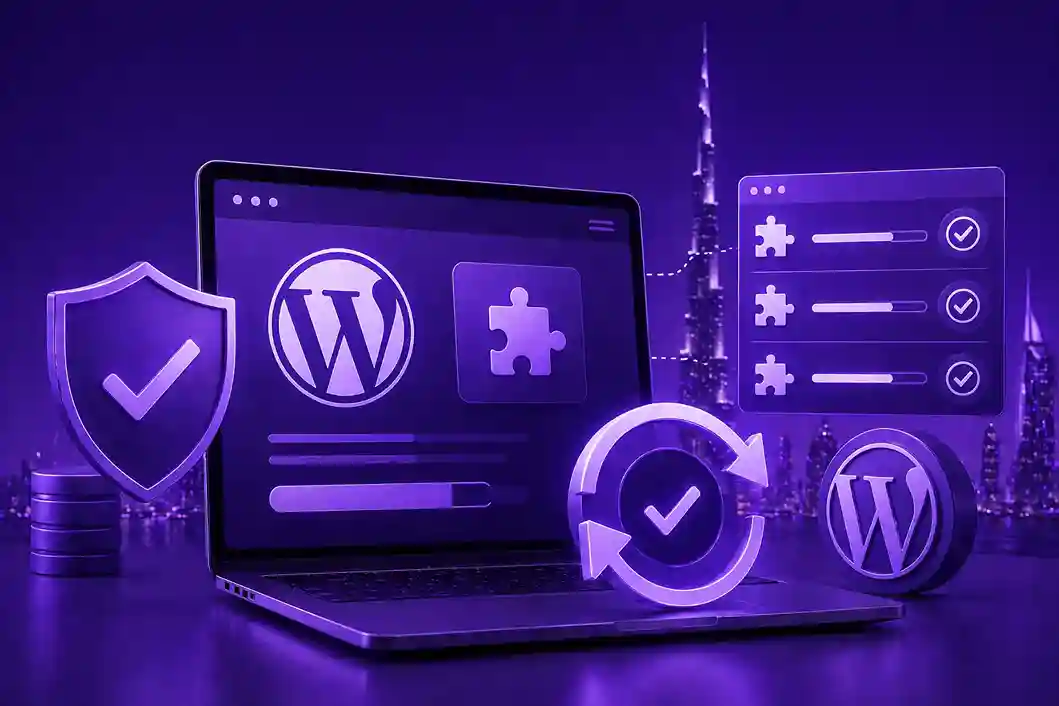
Updating WordPress plugins should improve your website—not break it. Yet for many business owners, a simple click on “Update” leads to broken layouts, missing features, or even a completely inaccessible site.
If you’ve ever faced a sudden website crash after an update, you’re not alone. The issue is common, but the good news is that it’s also preventable.
In this guide, we’ll explain why plugin updates break WordPress websites and share a safe, structured method to update plugins without downtime—so your website stays stable, fast, and secure.
Why WordPress Plugin Updates Cause Problems
WordPress is powerful because of plugins—but that same flexibility can create risks when updates are not managed properly.
Discover Our Expertise
Explore our company profile to learn more about our Digital Transformation Services, and how we can help your business thrive in the digital world.
1. Plugin Conflicts
Different plugins often perform similar functions. After an update, they may stop working together correctly, causing errors or layout issues.
2. Theme Compatibility Issues
If your theme isn’t updated alongside plugins, design elements may break or disappear.
3. Outdated WordPress Core Version
Plugins are built to work with newer WordPress versions. If your core is outdated, updates can trigger crashes.
4. Poorly Optimized Plugins
Not all plugins are developed with high coding standards. Some updates introduce bugs or instability.
5. Server or Cache Conflicts
Caching systems or hosting limitations may display outdated or broken versions of your website after updates.
The Safe Method to Update WordPress Plugins
Instead of updating plugins randomly, follow a controlled process that protects your website.
Step 1: Take a Full Backup (Non-Negotiable)
Before updating anything, always create a full backup of your website, including:
- Database
- Theme files
- Media uploads
- Plugin files
If anything goes wrong, you can restore your site instantly.
Step 2: Use a Staging Environment
A staging site is a clone of your live website where you can safely test updates.
This allows you to:
- Check plugin compatibility
- Identify design issues
- Prevent downtime on your live site
Step 3: Update Plugins One by One
Avoid bulk updates.
Updating plugins individually helps you:
- Identify which plugin caused an issue
- Troubleshoot faster
- Avoid cascading errors
Step 4: Check Compatibility Before Updating
Before clicking update, review:
- Plugin changelog
- WordPress version compatibility
- Recent user feedback or reported issues
Step 5: Clear Cache After Updates
After updating plugins, clear all layers of cache:
- Website cache (WP plugins like LiteSpeed or WP Rocket)
- Browser cache
- CDN cache (if using Cloudflare or similar services)
This ensures you see the updated version of your site.
Step 6: Test Key Website Functions
Always test important pages after updates:
- Homepage
- Contact forms
- Checkout or lead forms
- Mobile responsiveness
- Navigation menus
Even small issues can impact user experience and conversions.
Pro Tips to Prevent Plugin Update Issues
If you want long-term stability, follow these practices:
- Schedule updates during low-traffic hours
- Keep WordPress core, themes, and plugins updated regularly
- Remove unused or outdated plugins
- Use only well-maintained, highly-rated plugins
- Enable rollback options when available
Why Safe Plugin Updates Matter for Business Websites
For business websites, especially in competitive markets like Dubai and the UAE, downtime is not just a technical issue—it’s a revenue problem.
Broken websites can lead to:
- Lost customer inquiries
- Reduced trust and credibility
- Lower search engine rankings
- Poor user experience
That’s why structured website maintenance is essential for consistent performance.
How SquareZix Helps You Stay Safe and Hassle-Free
Managing WordPress updates manually can be risky and time-consuming, especially for business owners who need their website running 24/7.
That’s where SquareZix comes in.
At SquareZix, we help businesses eliminate the stress of website maintenance by offering:
- Safe and managed WordPress plugin updates
- Full website backups and recovery systems
- Staging environment testing before live deployment
- Regular performance and security monitoring
- Bug fixing and compatibility management
- Ongoing technical support and optimization
With SquareZix handling your WordPress maintenance, you don’t have to worry about broken pages, plugin conflicts, or unexpected downtime—we make sure your website stays secure, stable, and business-ready at all times.
Final Thoughts
WordPress plugin updates are necessary for security and performance, but they must be handled carefully. A simple update without preparation can lead to unnecessary downtime and business loss.
By following a structured process—backup, staging, testing, and monitoring—you can keep your website stable and fully functional at all times.
Frequently Asked Questions (FAQs)
1. Why do WordPress plugin updates break websites?
Plugin updates can break websites due to conflicts with other plugins, outdated themes, incompatible WordPress core versions, or poorly coded updates that introduce bugs.
2. What should I do before updating a WordPress plugin?
Always take a full website backup first, including your database, themes, media files, and plugins. This ensures you can restore your site if anything goes wrong.
3. What is a staging environment in WordPress?
A staging environment is a duplicate version of your live website where you can safely test updates and changes without affecting your real visitors or business operations.
4. Is it safe to update all plugins at once?
No, updating all plugins at once is risky. It is better to update them one by one so you can easily identify which plugin causes any issue.
5. How do I know if a plugin update is safe?
Check the plugin’s changelog, compatibility with your WordPress version, user reviews, and any reported issues before updating.
6. Why should I clear cache after updating plugins?
Clearing cache ensures that your website loads the latest updated version instead of showing outdated or broken cached files from your browser, plugin, or CDN.
7. Can plugin updates affect my business website performance?
Yes, poorly managed updates can cause downtime, broken pages, or slow performance, which may lead to lost leads, reduced trust, and lower conversions.